> For the complete documentation index, see [llms.txt](https://docs.zestprotocol.com/start/llms.txt). Markdown versions of documentation pages are available by appending `.md` to page URLs; this page is available as [Markdown](https://docs.zestprotocol.com/start/~/revisions/kdIEd6d4zZcopvgnpb85/borrow/how-to-use-stacks-market-to-borrow-assets.md).

# How to use Stacks Market to Borrow Assets

{% hint style="warning" %}
**Make sure you’re using Stacks Market V2** for higher borrow caps and increased capital efficiency.

Use the market selector in the top-left corner to switch between v1 and v2.

If your liquidity is still on V1, use the following guide to complete the migration: [Stacks Market Liquidity Migration: V1 to V2](/start/~/revisions/kdIEd6d4zZcopvgnpb85/borrow/stacks-market-liquidity-migration-v1-to-v2.md)
{% endhint %}

Start by visiting [https://app.zestprotocol.com](https://app.zestprotocol.com/) and connecting your Stacks wallet. We currently support [Leather](https://leather.io/), [Xverse](https://www.xverse.app/), [OKX Wallet](https://www.okx.com/web3),  [Fordefi](https://fordefi.com/), and [Asigna](https://asigna.io/).

## Getting Started

{% hint style="info" %}
**Each collateral to debt asset pair has different borrowing paremeters. Learn more here:** [#risk-parameters-introduction](#risk-parameters-introduction "mention")
{% endhint %}

Before you can borrow, you’ll need to supply an asset to be used as collateral. Please refer to [How to use Stacks Market to Earn Yield](/start/~/revisions/kdIEd6d4zZcopvgnpb85/borrow/how-to-use-stacks-market-to-earn-yield.md).

Only assets with a **checkmark** under the **‘Collateral’** column are eligible.

<figure><img src="https://563839015-files.gitbook.io/~/files/v0/b/gitbook-x-prod.appspot.com/o/spaces%2FGfC8dsUgiIuFFUi3sa84%2Fuploads%2F3GzpgRqNvhxWHGa9WW1d%2FScreenshot%202025-12-30%20at%2016.15.48.png?alt=media&amp;token=d7ac7772-3cb5-45cc-b816-78195d85acb2" alt="" width="563"><figcaption></figcaption></figure>

The first asset you supply, will be enabled as collateral by default. Instead, to change the enabled collateral asset:

1. Ensure you have **no active borrowing positions**
2. Disable the **‘Collateral’** toggle for your currently designated collateral asset and approve the transaction
3. Enable the **‘Collateral’** toggle for the new asset and approve the transaction

<figure><img src="https://563839015-files.gitbook.io/~/files/v0/b/gitbook-x-prod.appspot.com/o/spaces%2FGfC8dsUgiIuFFUi3sa84%2Fuploads%2FluZ7b2OpUJfAI2mkbA5E%2FScreenshot%202025-12-30%20at%2014.31.42.png?alt=media&amp;token=2e2d1905-252e-4d60-8c15-852133dfe4e9" alt="" width="563"><figcaption></figcaption></figure>

## Borrowing Against Your Collateral

Once you've supplied collateral, **‘Borrow’** buttons will appear in orange under **‘Assets to Borrow’**.

To proceed:\
– Find the asset you wish to borrow and click **‘Borrow’**\
– This will open the **‘Borrow $XYZ’** popup

{% embed url="<https://www.loom.com/share/9dceab5450b84c45924c3ced075c3465>" %}

In the **Borrow $XYZ** popup, a user can see how much they can borrow along with the estimated liquidation price and health factor, both of which update dynamically as they adjust the borrow amount.

The liquidation price is the collateral asset price at which your collateral will get liquidated. If you get liquidated, you get to keep the asset you borrowed but you lose (potentially all of) your collateral.

{% hint style="info" %}
If your Health Factor drops **below 1**, your position will be eligible for liquidation.
{% endhint %}

<figure><img src="https://563839015-files.gitbook.io/~/files/v0/b/gitbook-x-prod.appspot.com/o/spaces%2FGfC8dsUgiIuFFUi3sa84%2Fuploads%2FzqIGZfWZW9EfIaKWuYnl%2FScreenshot%202025-12-30%20at%2016.20.14.png?alt=media&amp;token=b1a4d973-6926-45b2-9177-aa74fd3fc1a9" alt="" width="375"><figcaption></figcaption></figure>

{% hint style="info" %}
**Understanding the ‘Borrow $XYZ’ Popup**\
\
**1) LTV (Loan-to-Value):**\
The ratio between your borrowed amount and the value of your supplied collateral.\
*Example:* If you supply $1,000 and borrow $500, your LTV is 50%.

**2) Max LTV:**\
The maximum LTV allowed before borrowing is no longer permitted.

**3) Liquidation Threshold:**\
The LTV level at which your loan becomes unsafe, triggering the risk of liquidation. If your LTV crosses this threshold, your collateral may be partially or fully sold to repay your debt.

To learn more about liquidation, see:[#what-happens-when-i-get-liquidated](#what-happens-when-i-get-liquidated "mention")
{% endhint %}

When you have opened a loan, interest automatically accrues to your debt in the UI.

## Borrowing Position Status

Once a borrowing position is active, the Position Status bar gives a clear view of its health. Additional details about your position sit just above the bar.

You can continue borrowing until the yellow marker, which indicates you’ve reached the maximum LTV.

If your status moves past the red marker, the position becomes eligible for liquidation.\
See here for more on liquidation: [#what-happens-when-i-get-liquidated](#what-happens-when-i-get-liquidated "mention")

<figure><img src="https://563839015-files.gitbook.io/~/files/v0/b/gitbook-x-prod.appspot.com/o/spaces%2FGfC8dsUgiIuFFUi3sa84%2Fuploads%2FLcor8AhT4sdOHJ0d2Whx%2FScreenshot%202025-12-30%20at%2016.24.48.png?alt=media&amp;token=77bf5ef3-35d4-430d-9959-cf793252bd04" alt=""><figcaption></figcaption></figure>

## Repaying your Loan

You can repay your loan **in full** or **partially** at any time by clicking **‘Repay’**.\
Partial repayments reduce your LTV and lower liquidation risk. Entering an amount in the **‘Repay’** field will display your updated liquidation price and health factor.

{% embed url="<https://www.loom.com/share/e429335fcc7d45488c69f81658d7f87f>" %}

## Topping up Collateral

You can also reduce liquidation risk by supplying additional collateral.

To do this, deposit more of the asset you have enabled as collateral via **‘Assets to Supply’**.\
The UI will display your new liquidation price.

*Example:* If you’ve enabled **stSTX** as collateral, you must supply additional **stSTX** to strengthen your position.

## What Happens When I Get Liquidated?

{% embed url="<https://www.loom.com/share/6719d43375df47e1b7157d6ad6c77a7b?sid=5eaf3c1e-4e82-4672-91cb-c3759badf6c7>" %}

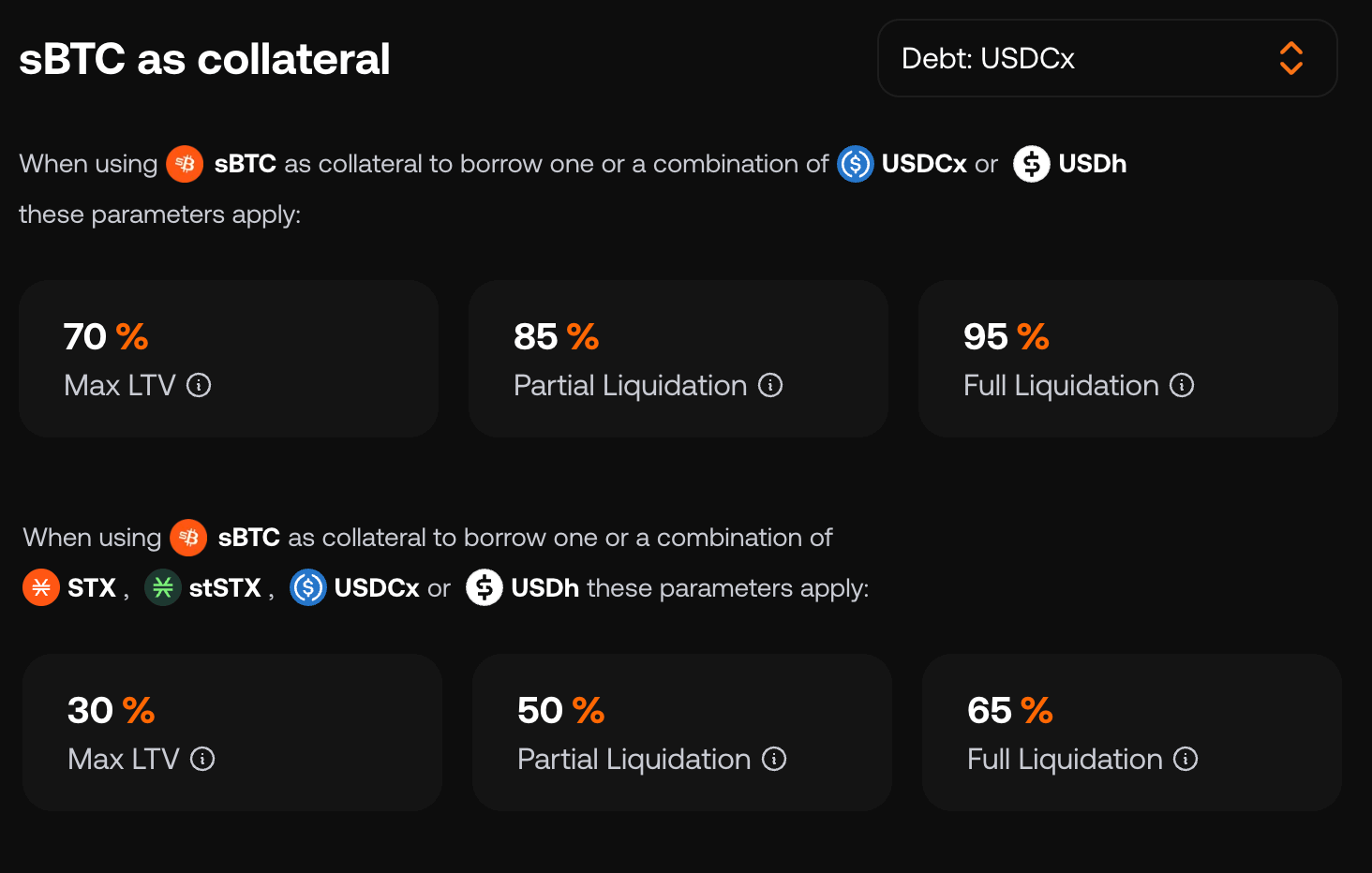
Zest uses ad-hoc borrowing parameters based on each collateral–debt pair, which determines when liquidation can occur. Check Risk Groups below to learn more: [#risk-parameters-introduction](#risk-parameters-introduction "mention")

For example, with sBTC as collateral, USDC borrowing comes with a 70% LTV and an 85% liquidation threshold.

If you deposit $1,000 in sBTC, you can borrow up to $700. Once your LTV hits 85%, the position becomes eligible for liquidation, with a penalty of roughly 5–10%.

**There are 3 main scenarios in which liquidation may be triggered:**

<table><thead><tr><th>Scenario</th><th>Initial Collateral (STX)</th><th>Initial Loan (Asset)</th><th width="136">What Changes?</th><th>When Liquidation Happens</th><th>Result After Liquidation</th></tr></thead><tbody><tr><td>1<strong>. Interest builds up</strong></td><td>$1,000</td><td>$500</td><td>Interest increases loan balance</td><td>LTV reaches liquidation threshold due to loan growing</td><td>Collateral liquidated to pay off  USDC loan + 10% penalty</td></tr><tr><td><strong>2. Borrowed asset goes up</strong></td><td>$1,000</td><td>$500 in volatile asset (e.g BTC, STX, ecc)</td><td>BTC price increases</td><td>LTV reaches liquidation threshold due to borrowed asset rising</td><td>Liquidation + penalty unless more collateral is added</td></tr><tr><td>3. C<strong>ollateral drops in value</strong></td><td>$1,000  in volatile asset (e.g BTC, STX, ecc)</td><td>$500</td><td>Collateral price drops</td><td>LTV exceeds liquidation threshold due to collateral falling</td><td>Liquidation + penalty unless more collateral is added</td></tr></tbody></table>

### Risk Parameters Introduction

Each Risk Group applies to a single collateral–debt pair, allowing parameters to be optimized for that specific combination.

To view any Risk Group’s parameters in Zest, you can:

1. Click **“Details”** for any asset under **Assets to Borrow** in the Dashboard
2. Click **“Details”** for any asset in the **Assets Overview** section (add link)

On the asset detail page, scroll to the **“\[asset] as collateral”** section.\
This section shows the parameters for that asset when used as collateral relative to each available debt asset, and the top-right selector lets you switch between those debt assets.

<figure><img src="https://563839015-files.gitbook.io/~/files/v0/b/gitbook-x-prod.appspot.com/o/spaces%2FGfC8dsUgiIuFFUi3sa84%2Fuploads%2F82X7gdZgRRLDeUynR8hb%2FsBTC%20as%20collateral.png?alt=media&amp;token=88c2f32b-ccc4-4840-9c09-1a40dc5d6b1b" alt="" width="563"><figcaption></figcaption></figure>

Below that section, you’ll find the **“\[asset] as debt”** parameters.\
Here too, you can use the top-right collateral selector to view how the configuration changes for different collateral assets.

Further detail on risk groups and parameters is available in the following V2 Market Design subsection:

1\) [Risk Groups](/start/~/revisions/kdIEd6d4zZcopvgnpb85/borrow/v2-market-design/risk-groups.md)

2\) [Risk Parameters](/start/~/revisions/kdIEd6d4zZcopvgnpb85/borrow/v2-market-design/risk-parameters.md)